Add People to a Photo
Explore a related image workflow if you need to prepare a group scene before making an ensemble portrait.

Loading history…
The Outstanding Tiny Desk AI Video Generator guide starts with one clear ensemble image. Start with one clear group portrait that already shows the people, instruments, and room you want to animate. This guide walks through preparing a friendly three-person desk-band greeting, choosing Text to Video or Image to Video, and checking the live generation options before you begin. The concept is independent and original, not a supplied concert template or recording.
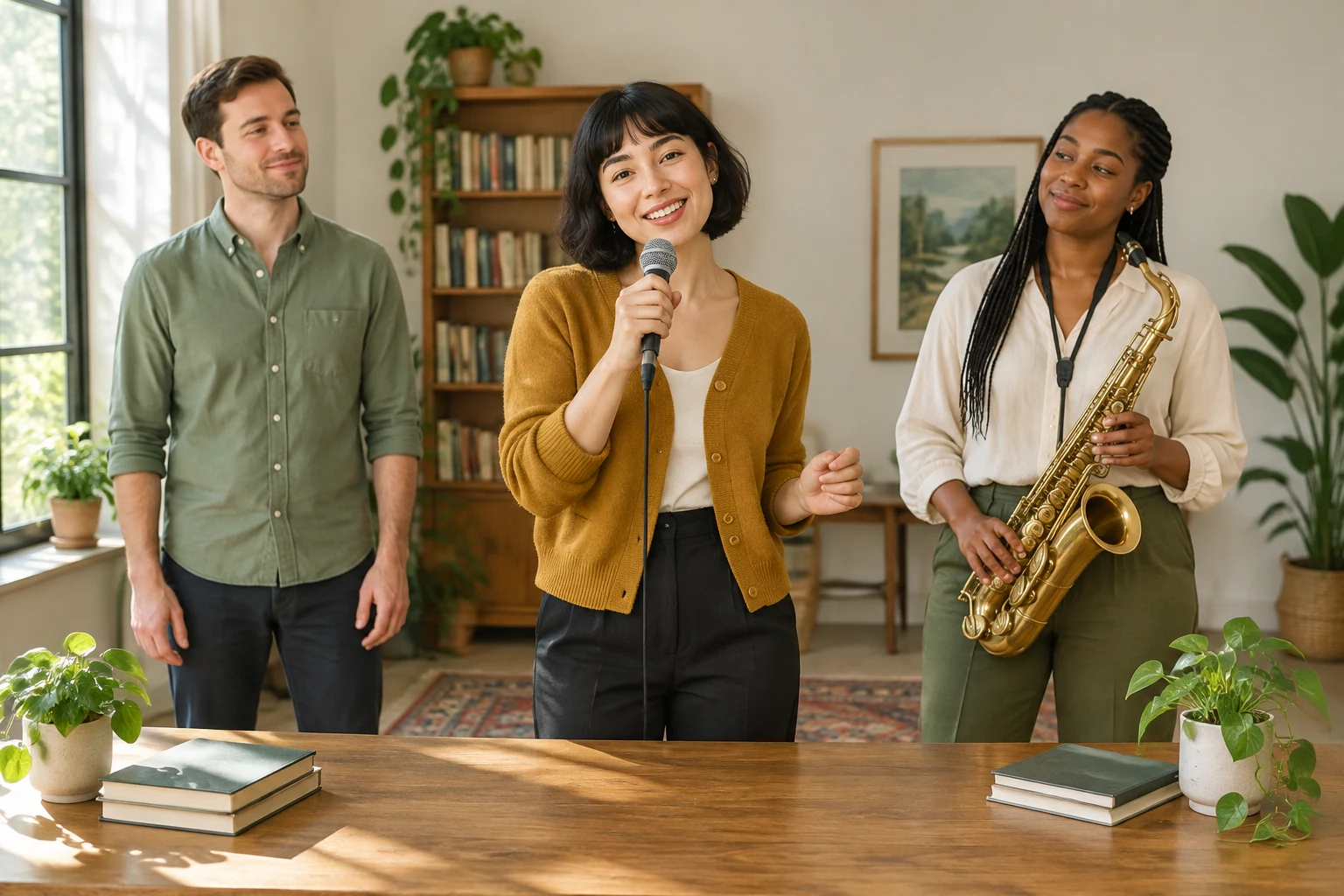
Decide who is in the group, what instruments are visible, and how they are arranged. For this example, picture an adult woman with a short black bob in an ochre cardigan, an adult man with short brown hair in a sage shirt, and an adult woman with dark braids in a cream blouse. Set them in a sunlit home studio with an oak desk, unmarked books, and two small plants.
For Image to Video, use one clear photograph that already contains the intended performers, instruments, room, and positions. Check that faces and hands are visible and that the whole group fits comfortably in the frame. There are no separate portrait slots or automatic band-role assignments, so prepare the ensemble as one image before animating it.
Text to Video describes fictional performers without an upload. Image to Video animates one prepared group photograph while preserving the actual people and scene in it. Ask for a small shoulder sway and a friendly closing wave in one steady continuous ensemble shot. Keep the request modest: complex hand playing, solos, cuts, and musical synchronization are not guaranteed.
With Seedance 2.5, check the live duration, aspect, resolution, and audio options in the panel rather than assuming fixed settings. Audio follows the options currently shown; no original recording is bundled. Check current credits beside Generate before starting, then follow progress in History. Results and availability can vary.
A useful source image shows all intended performers together, with faces unobstructed and enough space around the group for a subtle movement. Keep the instrument arrangement visible in the photo if it matters to the scene. In Image to Video, the uploaded ensemble photo supplies the people, clothing, room, positions, and instruments to preserve; it is not a collection of individual portraits to arrange later.
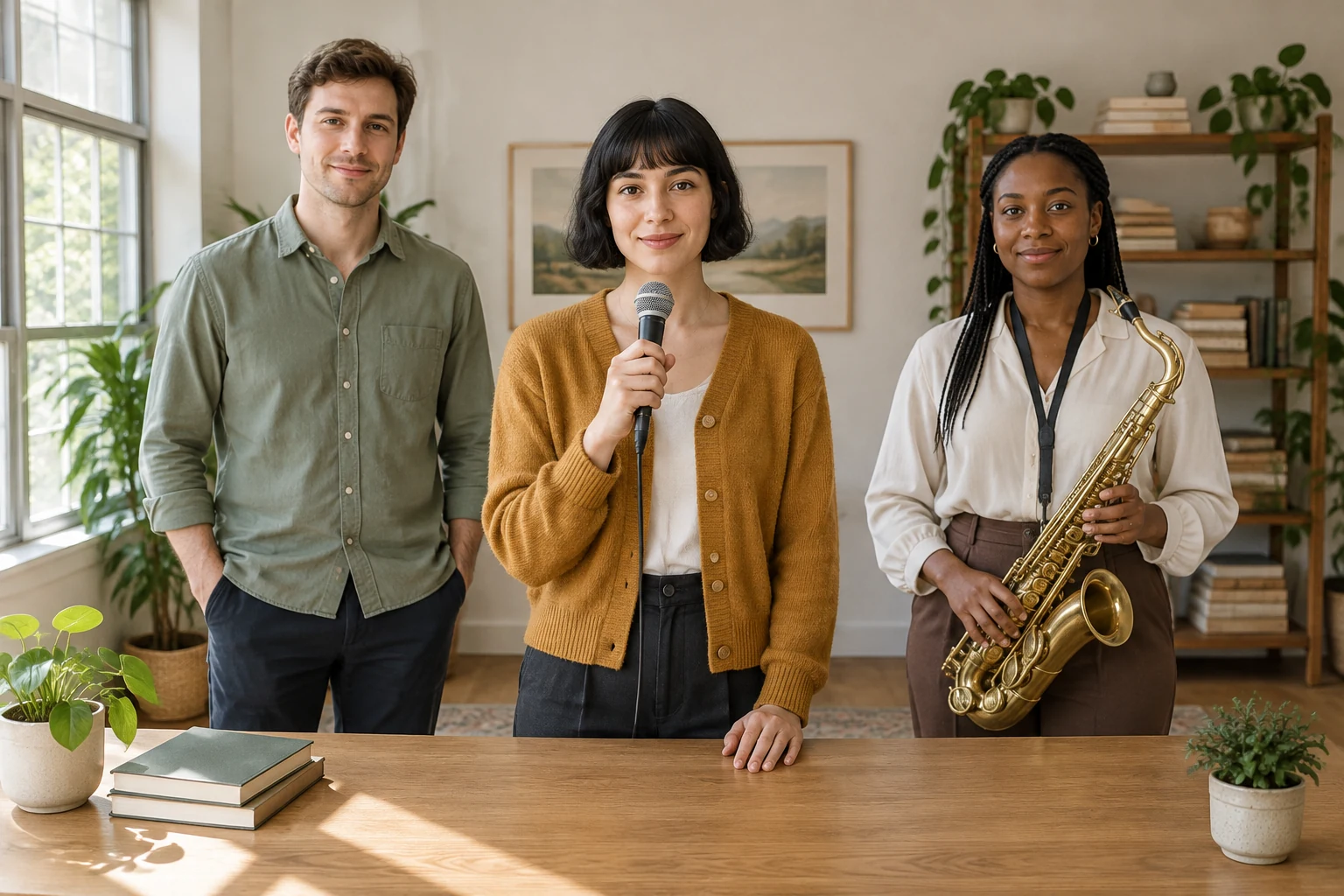
Use Text to Video when you want to describe a fictional cast and setting without uploading a photograph. Use Image to Video when you already have one group image and want to animate that actual ensemble. The edit prompt should adapt to the uploaded photo, not force the example cast or introduce people and instruments that were not there.
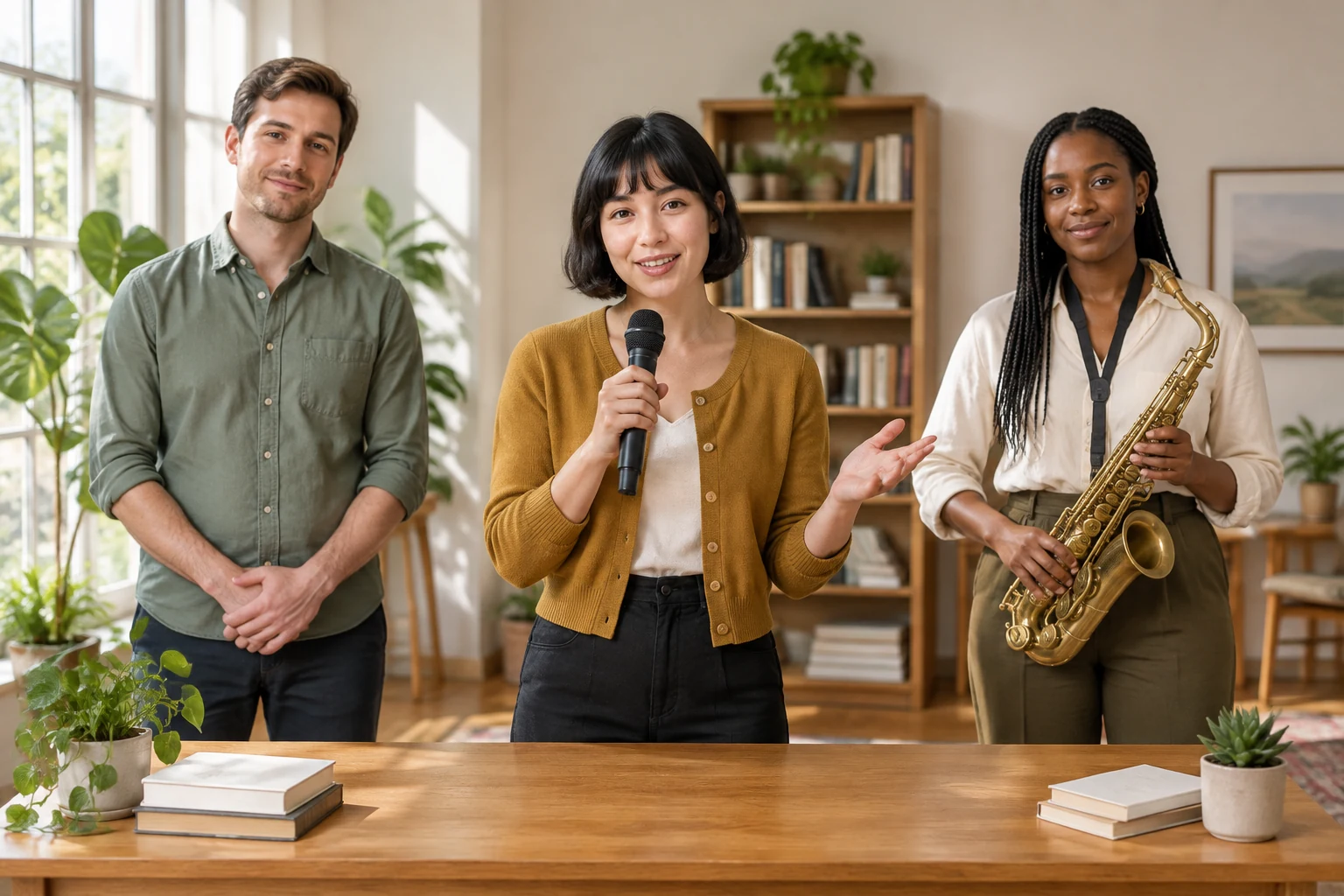
A gentle shoulder sway and a closing wave make a clear, friendly greeting without asking the performers to move around. Request one steady continuous shot and keep everyone in place with plausible hands. Do not rely on exact lip sync, complex instrument technique, a solo, edits, or timing that matches music. Review the live audio controls if you want sound, and remember that no original recording is included.
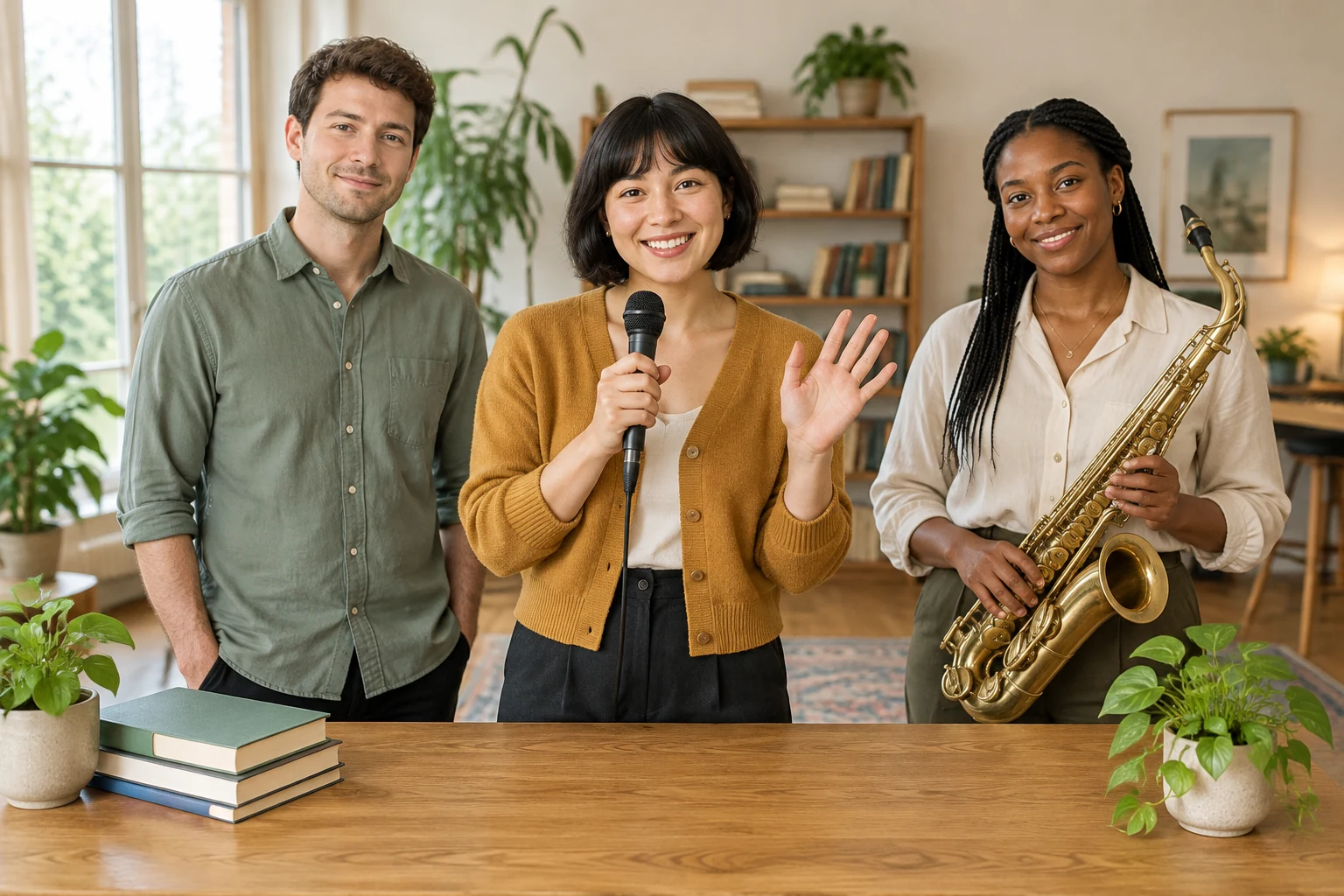
The nine-second silent three-frame slideshow is a planning preview, not a finished generated performance. It helps you check the intended sequence at a glance: first the ensemble, then the small greeting, and finally the closing pose. Use those frames to refine the composition and prompt before generation; they do not establish a fixed runtime or promise a particular video result.
Use one clear photo that already shows the complete intended ensemble, instruments, room, and positions. Check that faces are visible and the group fits in frame.
No. Image to Video animates one prepared group photograph. It does not provide separate portrait slots or automatically assign band roles.
Yes. Text to Video describes fictional performers and a setting without requiring an uploaded photograph.
No fixed runtime or aspect ratio is promised here. Check the live duration, aspect, and resolution options in the Seedance 2.5 panel before generating.
No. The suggested prompt requests restrained movement, not guaranteed lip sync, complex hand playing, musical synchronization, solos, or cuts.
Check current credits beside Generate before starting. Follow the job’s status in History; no free allowance or guaranteed outcome is assumed.
Explore a related image workflow if you need to prepare a group scene before making an ensemble portrait.
Review a clothing-editing option when refining wardrobe choices for a prepared image.
See a portrait-focused tool if you need individual profile images rather than one ensemble photo.
Consider an image-clarity workflow if a source portrait looks soft before you prepare the group.
wigsay.com · Updated