
AI Christmas Desktop Wallpaper: Prompts That Leave Icon Space
Create an AI Christmas Desktop Wallpaper that fits your screen and leaves room for icons. Explore 16 prompts, layout tips, and ways to adapt each one.
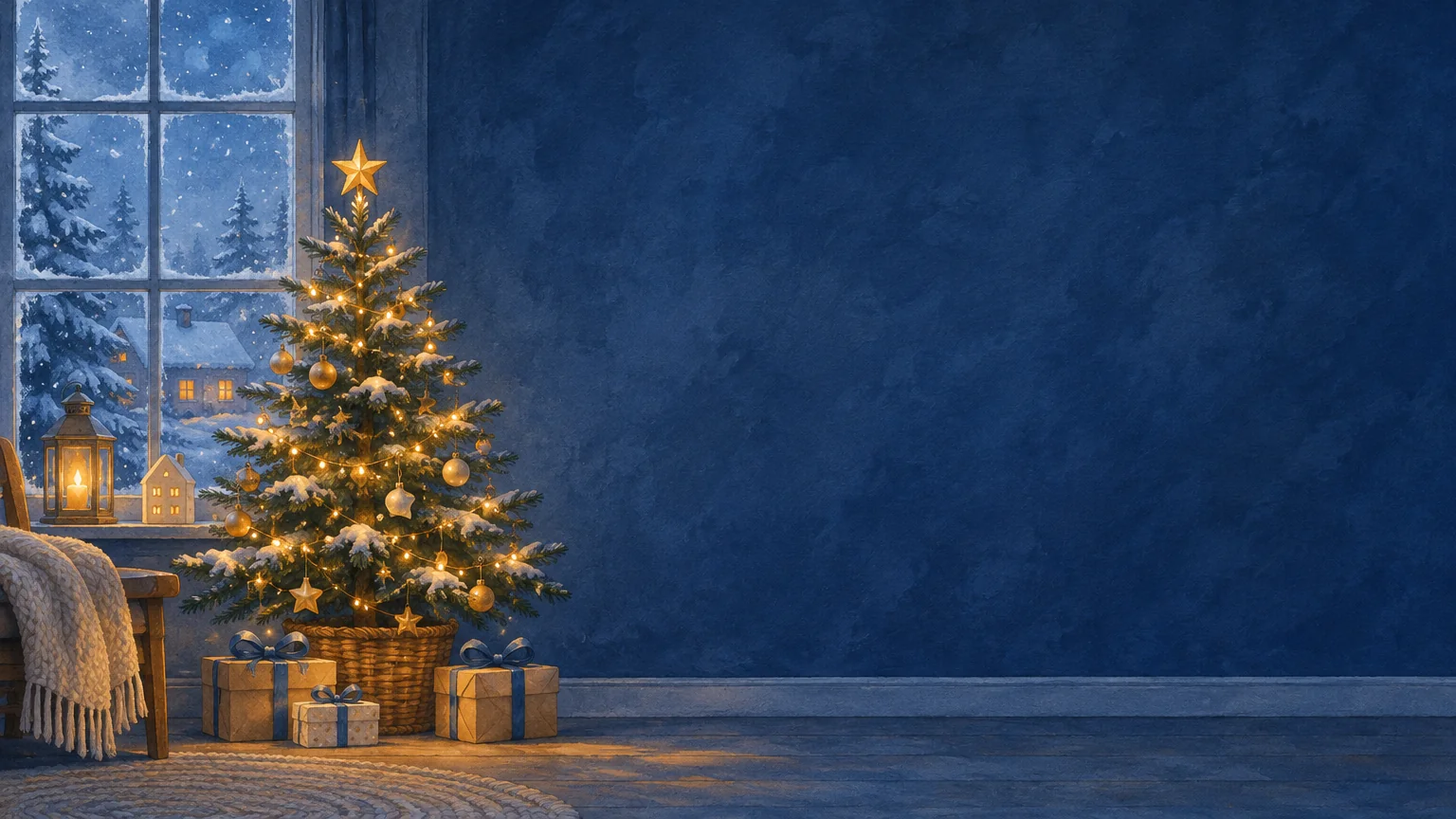
AI Christmas Desktop Wallpaper ideas work best when the image is designed around your screen, not just decorated for the season. Use the prompts below to create a clear focal point, protect space for desktop icons, and adapt the composition for 16:9, 16:10, or ultrawide displays.
What's new on this page
- 2026-11-25 — Page published. Added original Christmas desktop wallpaper prompts with screen-ratio and icon-space tips.
Design the frame before the decorations
Desktop wallpaper is a layout problem as much as an illustration prompt. Before generating, decide where your icons usually sit and whether your taskbar or dock takes up space along the bottom edge. Keep the main subject away from those zones, and describe the open area as intentional negative space—not an empty patch to be filled with extra ornaments.
Choose a mood below, then add the framing instructions that suit your display:
- 16:9: A familiar wide frame. Name the subject’s position and reserve a strip along the bottom for the taskbar.
- 16:10: Slightly taller than 16:9. Ask for more vertical breathing room above the focal point, while keeping the lower edge uncluttered.
- Ultrawide: Describe a panoramic scene with a modest central focal point and useful open space on one or both sides. Avoid stretching a portrait-oriented subject across the frame.
If your system offers a specific screen resolution, use it. Otherwise, select an output shape that matches your display and check the crop before setting the image as wallpaper. A larger canvas can help preserve detail on a high-resolution screen, but the aspect ratio still determines how the composition fits.
How to adapt a prompt in WigSay
Start with the scene and composition in any prompt below. Then adjust its direction to suit your screen:
- Set the ratio: Request a horizontal 16:9, 16:10, or ultrawide composition. If the tool provides aspect-ratio controls, choose the closest match there too.
- Place the focal point: Specify “left third,” “right third,” or “slightly off-center.” Add a clear instruction to keep the subject out of your icon or dock area.
- Protect quiet space: Tell the tool which region should stay visually calm. For example: “Keep the right third low-detail for desktop icons.”
- Keep the frame clean: Ask for no lettering, logos, borders, or interface elements. Check the result at full size for accidental details near the edges.
WigSay’s hairstyle tools are intended for trying hairstyle directions from a portrait, not for producing wallpaper from text prompts. To bring your own portrait into a Christmas scene, use a compatible image-editing workflow and treat the prompts here as direction for the setting, framing, and mood. For an avatar-first crop, see the AI Profile Picture Generator guide; for hairstyle inspiration in a portrait, explore the AI Short Hair Filter guide.
Cozy, candlelit scenes
These prompts favor warm light and a distinct focal point. Their quiet areas are part of the design, not unused space.
- Window and snowfall: “Horizontal 16:9 Christmas desktop wallpaper, a small fir tree with warm candlelike lights beside a tall snow-covered window, tree on the left third, soft snow outside, calm dark-blue right third for desktop icons, uncluttered lower edge for the taskbar, painterly realism, no text or logos.”
- Quiet reading nook: “16:10 winter reading nook at Christmas, open book and knitted blanket in the foreground, softly lit evergreen arrangement in the back left, warm amber glow, generous calm wall space on the right, keep important details above the bottom edge, refined editorial illustration, no lettering.”
- Lantern in the snow: “Ultrawide Christmas night landscape, one glowing red lantern on a snow-covered fence at the far left, distant evergreens and gentle falling snow, broad midnight-blue sky and quiet open space across the right half, delicate grain, restrained palette, no text.”
- Kitchen after baking: “Horizontal 16:9 cozy holiday kitchen at dusk, a plate of star-shaped cookies beside a small evergreen sprig, warm window light, still life grouped in the lower-left area but clear of the taskbar, plain muted wall across the upper right for icons, soft gouache style, no labels.”
Crisp winter minimalism
Use these when you want seasonal atmosphere without a dense field of decorations. A few deliberate shapes hold up well behind desktop shortcuts.
- Single red ornament: “16:9 minimalist Christmas wallpaper, one matte red ornament hanging from a fine evergreen branch near the upper-left corner, pale winter sky filling the right two-thirds, subtle snow texture, reserve bottom edge for taskbar, graphic composition, no text or border.”
- Frosted branches: “16:10 close-up of delicate frosted pine branches framing the upper corners, open soft-ivory snowfield in the center and lower half, tiny red berries as restrained accents, even winter daylight, clean modern illustration, no lettering.”
- Geometric tree: “Ultrawide modern holiday wallpaper, abstract evergreen formed from layered deep-green triangles on the far left, small warm-gold star, broad pale-blue negative space across the center and right, subtle paper texture, simple shapes, no text.”
- Snowy ridge: “Horizontal 16:9 minimal alpine Christmas scene, layered blue-white mountain silhouettes, one tiny evergreen on the left ridge, quiet lavender dawn sky, keep the central area uncluttered and the bottom strip free of fine detail, atmospheric, no words.”
Storybook and handmade charm
These scenes can be more detailed, so anchor the main action in one area and keep the opposite side calm.
- Village at blue hour: “16:9 storybook Christmas village at blue hour, warmly lit cottages clustered in the lower-left third, snowy road leading gently toward them, large calm twilight sky on the right for icons, soft hand-painted texture, no signs or lettering.”
- Paper-cut forest: “16:10 layered paper-cut winter forest, evergreen silhouettes in deep teal along the sides, tiny glowing cabin placed left of center, open pale-mint sky above, keep the bottom edge visually simple for a dock, tactile cut-paper shadows, no text.”
- Postcard from the mountains: “Ultrawide illustrated Christmas mountain valley, little cabin and smoke plume at the far right, snowy firs in the foreground, broad quiet pink-and-blue evening sky across the left half, delicate colored-pencil texture, no writing or postcard frame.”
- Sled beneath the tree: “Horizontal 16:9 hand-painted snowy clearing, a wooden sled with a small evergreen bundle in the lower-right quadrant, distant forest softened by snowfall, open cool-white space on the left for icons, charming but uncluttered, no lettering.”
Night skies and luminous color
For brighter, more atmospheric images, ask for a restrained glow. Too many bright points can compete with icons and make the screen feel busy.
- Aurora over firs: “Ultrawide Christmas night wallpaper, low dark evergreen forest along the bottom, a subtle green-and-violet aurora sweeping across the upper sky, tiny cabin light at the far left, keep center sky smooth and low-detail, cinematic illustration, no text.”
- Star over a city roof: “Horizontal 16:9 winter city rooftops at night, one bright star above a rooftop evergreen near the right third, snow catching soft gold window light, broad deep-navy open sky on the left, reserve lower edge for taskbar, no signs or logos.”
- Blue glass ornaments: “16:10 refined holiday still life, three translucent blue glass ornaments and one evergreen clipping grouped at the far right, cool moonlit reflections, gradient charcoal-to-navy background, open left half for icons, crisp elegant rendering, no words.”
- Snow under streetlights: “Ultrawide quiet Christmas street after snowfall, warm streetlights receding along the far-left edge, empty pale snow and blue night haze across the center and right, restrained cinematic color, avoid bright details near the bottom, no text.”
Check the crop before you keep it
A prompt can request excellent spacing, but the final image still needs a quick layout check. Preview it at the intended screen shape and look for these issues:
- Icons cover the focal point: Move the subject to the opposite third or shift your icon layout.
- The dock hides a detail: Ask for a cleaner bottom strip or place important objects higher.
- The ultrawide feels stretched: Rebuild the scene with a panoramic background and a compact focal subject instead of widening a close-up.
- The image feels too busy: Remove small decorations and specify a larger, calmer area for icons.
FAQ
Should I ask for a specific pixel resolution?
If you know your display’s resolution, use it when the image tool supports custom dimensions. Otherwise, choose the closest available aspect ratio and inspect the crop before applying the wallpaper.
Where should the main Christmas subject go?
Put it opposite your usual icon cluster and away from the taskbar or dock. A left-third or right-third focal point is a useful starting place, but your actual desktop layout should decide.
What should I change for ultrawide wallpaper?
Describe a wider environment, not a stretched central object. Place the focal point toward one side and explicitly reserve a broad, low-detail area for icons.
Can I use my own portrait in these scenes?
These prompts describe wallpaper composition, not a guaranteed portrait-editing feature. If you want hairstyle ideas for a portrait, start with the AI Long Hair Filter guide and keep wallpaper creation as a separate workflow.
For a portrait-based hairstyle direction, try the AI Short Hair Filter guide; for a desktop background, use the prompts above as a composition brief and check the final crop on your own screen.